Showing posts with label Android. Show all posts

Shimmer Loading in Flutter

 This article will help you to get started with the shimmer effect when loading with state management using a provider


The final app looks as follows:


Provider

Provider is built by the community for effective state management. Although it is not developed by Google, they encourage using it. It is easier to use and manage which is basically a wrapper around the Inherited Widgets.

Shimmer

Shimmer is a loading effect that is used to add beautiful animation when the data is loading from the server. In simple words, it is a loader like the Circular Progress Indicator available in the Flutter framework.


Click FULL CODE for code: 


Collapsible App Bar Flutter

 AppBar widget is one of the most used and integral part of any mobile app which is used to display important information such as page title, tabs, logo, and action icons that can be used for various purposes like navigation and many more.

Scrolling App bar is one of the special abilities that is widely used in modern applications.

Also, we are going to use the CarouselSlider.

Note: The image of products used in this application are from Nykaa.

First, we are going to discuss the widgets we are going to use in this application.

NestedScrollView

It is a ScrollView inside which other scrolling views can be used , with their scroll positions being intrinsically linked. The most common use case for this widget is a scrollable view with a flexible SliverAppBar containing a TabBar in the header (built by headerSliverBuilder, and with a TabBarView in the body, such that the scrollable view’s contents vary based on which tab is visible.

SliverAppBar

SliverAppBar is the material widget in flutter which provides ability of scrollable or collapsible AppBar. It also allows us the create the floating app bar effect. It gets expanded and collapses when the AppBar is scrolled up and scrolled down respectively.

CarouselSlider

Carousel Slider is one of the most popular image sliders used nowadays in most apps. These Carousel Sliders are mostly seen in various eCommerce sites such as Amazon, Flipkart, Myntra, and many more. Displaying the images in a slider gives an attractive User Experience. As these sliders are automated you can get to see various types of images and content in them.


Learn more on this link.


Live example:


Theme Switcher in flutter

 In the field of application development, switching themes is one of the trending features. Changing the theme can reduce the user’s eye strain and also the battery life.

Here, we are going to learn how to develop an application that can change the themes dynamically.

Get full code: Github


    Live working example :


In this project, we are going to use two packages Provider and SharedPreferences.

  • Provider: It is one of the famous packages that is used for dependency injection and state management.
  • SharedPreferences: Shared Preferences allow us to store the minimal amount of primitive data as key/value pairs in a file on the device. Here we use it to store the current theme so that the user gets the same after closing and returning back to the application.

We can achieve this in two ways: one by adding a custom option and the other by automatically switching the theme based on the system settings.

In Flutter, we can change the theme throughout the app with the help of ThemeData in MaterialApp constructor. The default theme will be shared throughout the app when no theme is provided.

MaterialApp(
theme: ThemeData( ... ), // to declare the theme to throughout the application
);

ThemeData is used to configure the appearance of the entire app. It consists of a large number of properties to declare the theme in our app.

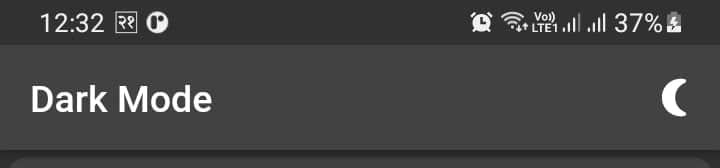
ThemeData.dark() is responsible to provide the dart theme across the application.

MaterialApp(
theme: ThemeData.dark(), // default dark the theme
);
Dark theme

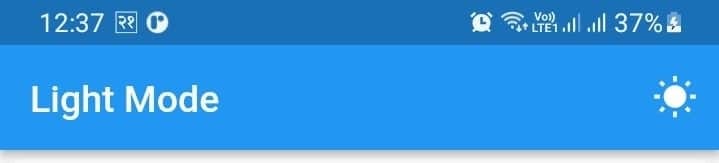
ThemeData.light() gives the Light blue theme, which is a default theme for every flutter application.

Light theme

We can also change the primaryColor of the theme. We can obtain as follows:

MaterialApp(
theme: ThemeData(
brightness: Brightness.light,
primaryColor: Colors.green,
primarySwatch: Colors.green
),);
Light theme color

Date picker in flutter


Date Picker is one of the most-used widgets in mobile applications and also in web apps too. In this article, we are going to create a simple working example of how to create a date picker and get the date.

Our final app will function as follows:

https://bit.ly/3chaqdv 

The working example of the application.


Learn in Video


First, we create a new file named homepage.dart inside the lib folder. As in the gif above, we first need to have a text field. When clicking a text field, the date picker dialog is opened where we choose the date.

Then we create the date picker.


  • initialDate: Here we give today’s date. Today’s date will get highlighted when the date picker is shown.
  • lastDate: Here we provide how far our calendar shows the year's data.
  • firstDate: Here we need to provide how much back the date are shown. If we have to disable users to exclude dates before today we need to provide today’s date as.

With this, we can show the date picker and pick the date. We can also format the date we picked from the date picker.  


Here we have formatted the date as yyyy-MM-dd . You can achieve more formatting by following this link.

After selecting the date and formatting we set our dateController with the picked date as:

setState(() { 
dateController.text = formattedDate;
});

Let’s get connected

We can be friends. Find on FacebookLinkedinGithub, and Instagram.

Conclusion

I hope this article is helpful to you and you learned new things. I have used various things in this article that might be new for some of you.

If you learned something new or want to suggest something then please let me know in the comment.

Also, follow to get updated on exciting articles and projects.

Learning by sharing gives a great impact on the learning process and makes the community bigger and bigger.

Sharing is a magnet that attracts other enthusiasts toward you.

Hence, let’s take a small step toward making our learning community bigger.

Share this article with your friends or tweet about the article if you loved it.